Agenda
- Admin & account setup — Brightspace, office hours, Wi-Fi, CUNY email, OneDrive
- Getting set up in Figma — signing up and a walkthrough of the interface
- Break
- Something You Love activity — build a Figma board, then partner up to share
- Survey
Today we'll get your accounts and tools set up, then dive into a first creative activity using Figma.
Admin
- Class notes: you can find all of the class notes on this website.
- Inventory of Equipment to rent: https://docs.google.com/document/d/152OD5klu9dqscZ50MPHBo1PBHT4JvTDwxwHdMkxPdpM/edit?tab=t.0
- Brightspace: all class communication, including graded assignments, will be posted through Brightspace announcements. Check it regularly.
- Office hours: Tuesdays 12:30–1:30. Email me to schedule a time: jeffrey.ong97@lagcc.cuny.edu
- Wi-Fi: instructions for connecting are here: https://www.laguardia.edu/student-help/
- CUNY email: make sure you can log into your CUNY email — you'll use this same account both for OneDrive and to sign up for Figma. Login instructions: https://acrobat.adobe.com/id/urn:aaid:sc:VA6C2:5a5e9f99-1d6c-41f3-b310-fbf76a38a08c
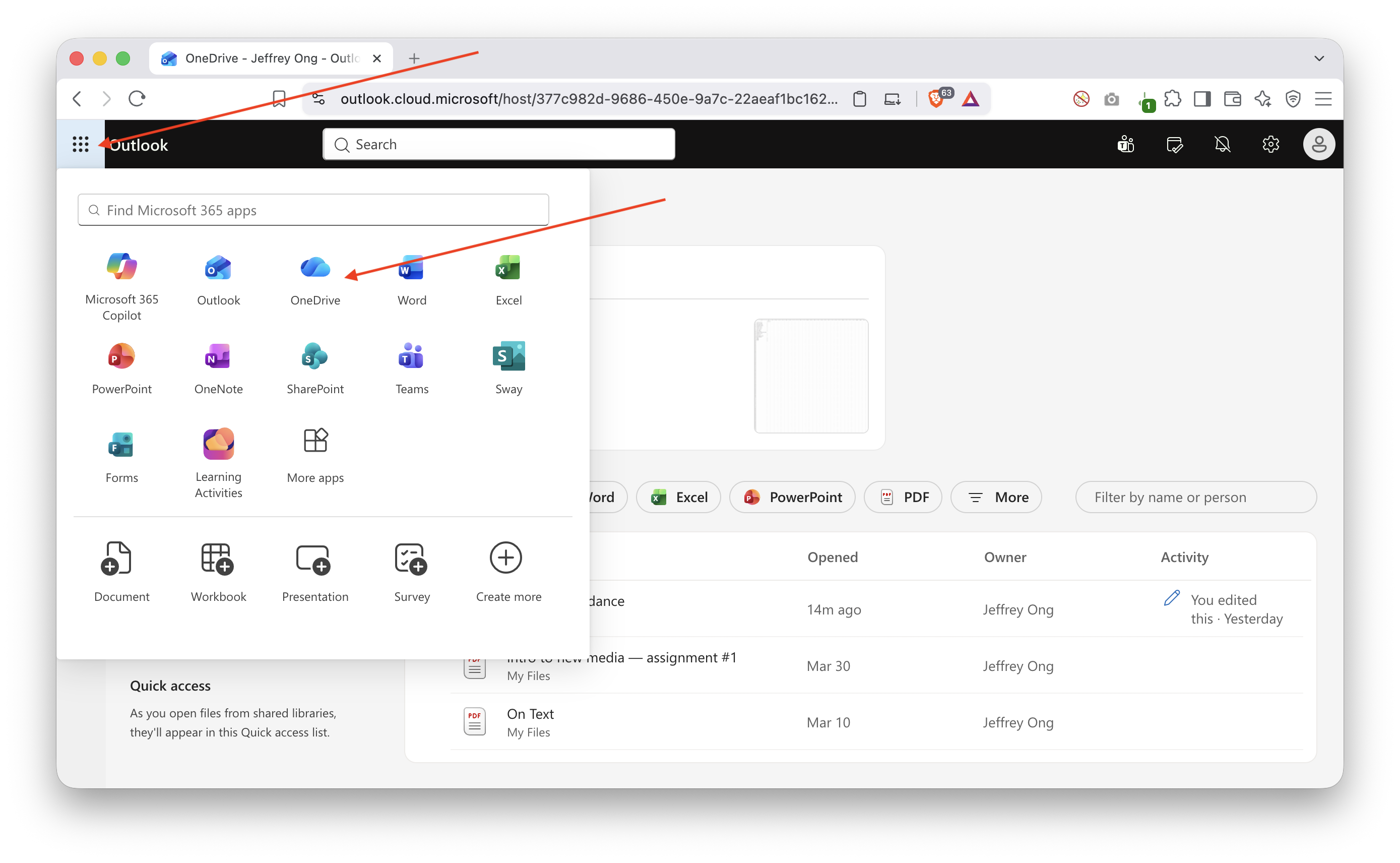
- OneDrive: this is where you'll save and back up your work so you don't lose
it. Here's how to access it through your CUNY account:
Getting set up in Figma
-
Sign up for Figma at figma.com/signup using your CUNY student email. You'll be asked to go through a verification flow to confirm you're a student, this unlocks Figma's free education plan.
-
Use this link to join the class Figma Team: https://www.figma.com/team_invite/redeem/0UgAOk4s4Qvsvg02ihbfFl?t=fdQngmY5yTzz9skA-21
Why we're using Figma: Figma is a design tool that's become an industry standard for design work. We're using it this semester to build your comfort with typography and graphics fundamentals. It also has a gentler learning curve than a lot of other design software, which makes it a good place to start before we get into more technical tools later in the course.
Finding your way around: Figma has a short guide to navigating the interface: https://help.figma.com/hc/en-us/articles/30925881896727-FD4B-Navigate-Figma-Design-files
The four areas you'll use constantly:
- Toolbar (top of the screen) — where you pick your tool: shapes, text, the frame tool, and more.
- Left sidebar — lists your layers and pages, i.e. everything you've placed on the canvas so far.
- Right sidebar — shows the properties of whatever you currently have selected (size, color, font, position, etc).
- Canvas — the open workspace in the middle where you actually place and arrange things.
One term you'll hear a lot: a frame. Think of a frame as a fixed-size container you draw on the canvas — like a sheet of paper or a picture frame — that holds your design. You'll create one frame for today's activity.
To add images and text: pick the text tool or image tool from the toolbar, or drag a file from your computer straight onto the canvas.
FigJam's are like Figma files, but more flexible for brainstorming and group activities.
Some unique things you can do in FigJam files instead of regular design files:
- Add stickies
- Draw a doodle
- Highlight an object or text
Here is a guide to FigJams: https://help.figma.com/hc/en-us/articles/1500004362321-Guide-to-FigJam
Activity
In this FigJam, add something that inspires you: https://www.figma.com/board/PLM0fnz3Pd5xG9uIwvjk0k/Introductions?node-id=0-1&t=SScO7uR81SeelYea-1
Include:
- An image or video about it
- A text description: what it is, what it means to you, where does it come from, why is
We will share this with each other, to get to know one another better.
Homework
- Become familiar with navigating Figma
- Fill out the survey if you have not yet: https://docs.google.com/forms/d/e/1FAIpQLScmzqvZRO-20XAwsr927CMmENCsAKPJdxdAlNcC4UT49ZTgzQ/viewform?usp=header
Have a good weekend :)